
Parental Controls App by Ohana
ohanaParenting
3.511.00 Reviews
- Version
- 4.62.0
- Installs
- 50.00K
- Age Rating
- Everyone
Screenshots
Our Review of Parental Controls App by Ohana
 Analysis by Appyee
Parental controls sound simple until a rule affects the wrong moment: a child needs a device for homework, a blocked app is suddenly needed for school, or a screen-time limit turns into an argument. I look at Ohana as a tool for setting boundaries, not as a substitute for talking through them. Its appeal is the combination of limits, app blocking, and internet safeguards in one parenting app, but the experience depends on getting the family’s expectations and device setup aligned.
Where setup can feel confusing
The first hurdle with any family control app is usually not finding a setting; it is deciding what the setting should do in real life. A strict daily limit may sound fair until schoolwork, travel, or a weekend plan changes the routine. I would begin with one clear rule, explain it to the child, and see how it works for a few days before adding more restrictions. That makes it easier to tell whether a problem comes from the rule itself or from how it was configured.
It also helps to agree on exceptions before they are needed. For example, decide whether homework time counts toward recreational screen use and what should happen if a child needs to contact family after a limit is reached. A control app is most useful when everyone understands the boundary; without that conversation, even a sensible block can feel arbitrary. Ohana is aimed at parents who want practical help managing screen time and access, rather than a complicated technical dashboard.
Checks before relying on a rule
Before turning on restrictions, I would check which device belongs to which child and whether the family is using the same account and profile consistently. A rule attached to the wrong profile can look like a failure even when the setting itself is reasonable. I would also test a limit or block while I am nearby, then confirm the result on the child’s device. This small trial is more useful than discovering a mismatch during a rushed morning.
Keep the first setup modest. If you introduce several limits at once, it becomes difficult to work out which one is causing friction. Start with the most important need—perhaps a device-free evening period or a particular app that is distracting—and expand only after that first rule behaves as expected. This is a practical way to avoid turning setup into a long troubleshooting session.
Using Ohana in everyday family life
Ever found yourself wondering how to keep your kids safe online? Well, let me introduce you to the Parental Controls App by Ohana. This app is like having an extra set of eyes watching over your child's digital world. I downloaded it a few weeks ago, and honestly, it's been a game-changer for my parental peace of mind.
Getting Started with Ohana
First things first, setting up the Parental Controls App by Ohana was surprisingly easy. I’m not exactly a tech wizard, but the app guided me through the process like a friendly virtual assistant. You start by creating an account and then setting up profiles for each kid. The interface is super intuitive, which means even if you’re not tech-savvy, you’ll find your way around just fine.
Main Features That Stood Out
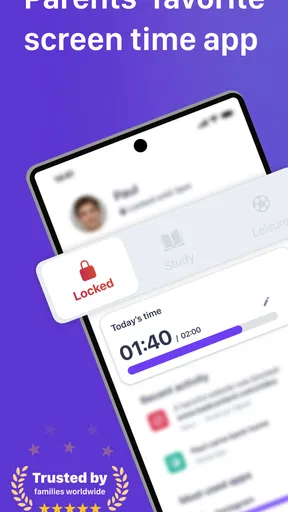
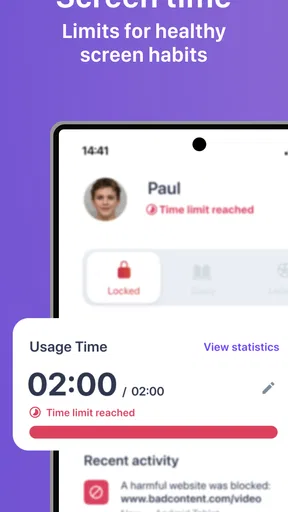
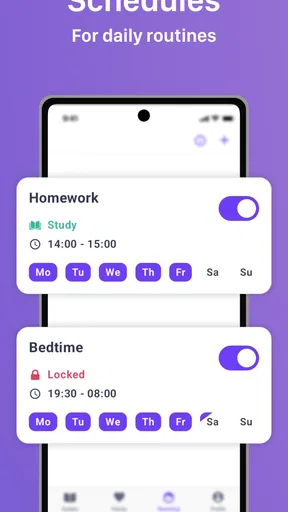
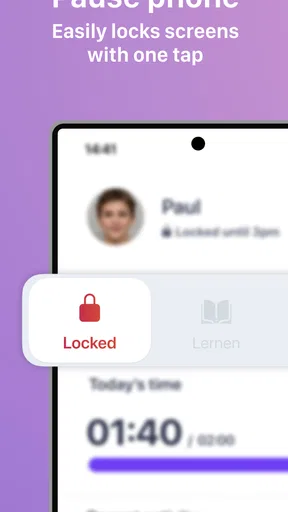
One of my favorite features has to be the screen time management. I could set daily limits on device use, which is perfect for making sure the kids don’t spend their entire day glued to screens. The app even lets you schedule device-free periods, like during homework or family dinner time. It’s like having a digital nanny!
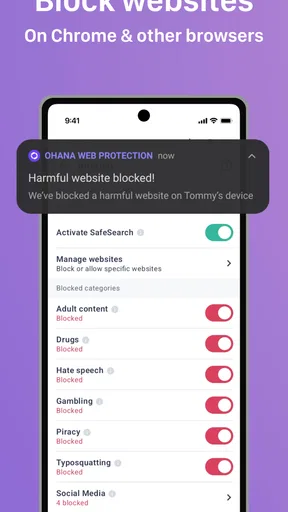
Another cool aspect is the content filtering. Ohana allows you to block inappropriate websites and apps. You can customize these settings based on age-appropriate content. Plus, the app provides detailed reports on what your kids are up to online, which is both enlightening and a little scary at times!
Location Tracking and Alerts
If you’re like me and worry about where your kids are, the location tracking feature is a lifesaver. You can see their real-time location on a map, and it even sends alerts when they arrive or leave a designated area. This feature gives me peace of mind, especially when they’re off to a friend’s house or a school trip.
Ease of Use and Compatibility
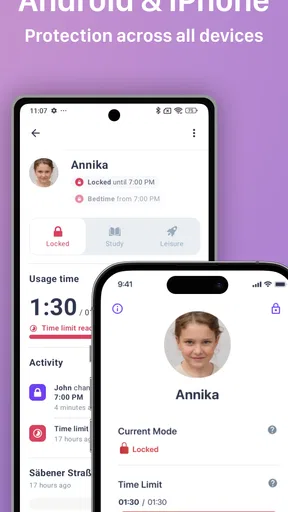
The app works seamlessly on both Android and iOS devices, which is a big plus since our household is a mixed-tech environment. Whether you’re using a tablet, smartphone, or even a desktop, the app syncs effortlessly across all devices. It’s like having a universal remote control for your family’s digital life.
Staying Connected
Ohana also promotes communication between parents and kids. It’s not just about monitoring; it’s about engaging. The app includes features like task lists and shared calendars, which help in planning family activities and chores. I loved how it subtly encourages kids to be more responsible without feeling like they’re under surveillance.
Choosing the right level of control
For an ordinary weekday, I would use the time controls to separate schoolwork from entertainment rather than treating every minute on a screen as identical. If a child has an online assignment after school, a blanket cutoff could be counterproductive. A better routine is to agree on a time when recreational use ends, while leaving room for necessary tasks and a parent-approved exception when plans change. The useful question is not simply “How long was the device used?” but “What was it being used for, and does this boundary still make sense?”
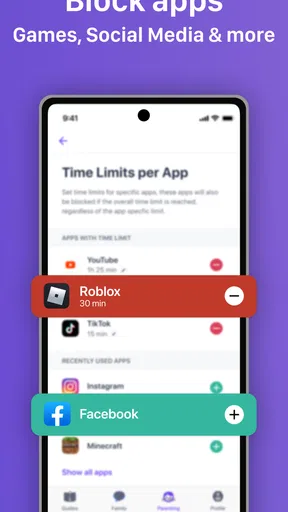
Website and app blocking also works best when it is selective. I would start with a specific concern and check whether the restriction solves it, instead of blocking broadly and then repeatedly making exceptions. This approach reduces the chance that a child loses access to something legitimate along with the content you meant to restrict. It also gives parents a clearer conversation starter: explain the reason for a particular boundary and revisit it as a child becomes more independent.
When a rule appears not to work
If a limit or block does not behave as expected, I would first check the selected child profile and the device being managed, then review the rule itself. Next, confirm that the child is using the device associated with that profile and that the change has had a chance to take effect. Testing one setting at a time helps narrow down the cause without undoing the rest of the family’s setup.
When a device is shared between siblings, profile mix-ups deserve special attention. A rule can seem inconsistent simply because the device is being used under a different child’s profile or account. I would also ask the child what they see on their screen rather than relying only on the parent’s view; that simple check can reveal whether the issue is a misunderstanding, an incorrect profile, or a genuine configuration problem.
When another tool may suit you better
Built-in controls on a phone or tablet can be a better fit for a parent who only wants a basic time limit on one device. They avoid introducing another family management app and may be enough when the household has a simple setup. Ohana makes more sense when a parent wants a dedicated place to manage children’s screen time, app access, and internet safety together. The trade-off is that a dedicated tool asks you to maintain its setup and communicate its rules, not just switch it on and forget about it.
I would not choose a parental-control app as a way to secretly supervise every part of a child’s online life. Controls can support safety, but they do not replace age-appropriate conversations or a plan for what a child should do after encountering something upsetting. Families who need a highly specific school-device management system, or who do not want to manage controls across family devices, may be better served by a narrower solution or the device’s own built-in settings.
Price, audience, and practical expectations
Ohana is a free parenting app from developer ohana, with in-app purchases ranging from $3.99 to $99.99 per item. I would check what is included in the version I plan to use before building a routine around a particular control. The app is rated for Everyone, but that rating does not mean every setting is suitable for every child; parents still need to choose rules according to age, maturity, and the family’s needs.
Its average rating is 3.6 from over 550 ratings, and it has more than 50,000 installs. I take that as a reason to approach it thoughtfully rather than assume the experience will be perfect for every household. The current version is 4.62.0, and it requires Android 8.0 or later. If the child’s device does not meet that requirement, checking compatibility before trying to build a shared routine can save time.
A realistic routine, not a digital babysitter
Imagine a school night when a child needs a tablet for an assignment but tends to move straight from homework into games. I would set a clear device-free period for dinner, then agree that the time limit is meant to curb entertainment rather than interrupt the assignment. If a game or site is the specific distraction, a targeted block is more useful than making the whole tablet unavailable. After the first evening, I would ask what worked and adjust only the rule that caused a real problem.
This kind of trial also helps parents avoid treating reports as a verdict. A record of online activity may provide context, but it does not explain a child’s motives or whether a particular visit was school-related. I would use what I learn to ask a calm, specific question, not to make assumptions from a screen. That distinction is important: monitoring can point to a conversation, but it cannot have the conversation for you.
What I would check before committing
Before relying on Ohana for a trip or a busy week, I would test the controls at home and make sure both parent and child know what to expect. Check that the relevant profile is selected, try the limit or block on the device the child actually uses, and make sure everyone understands how to ask for an exception. Those checks make the system easier to live with and reduce the temptation to change several settings in a hurry.
I would also keep a simple backup plan for ordinary exceptions: tell the child how to reach a parent if a restriction gets in the way of a necessary task, and decide who can approve a change. That is especially useful when devices are shared or when routines vary between school days and weekends. A control that is clear and predictable is more likely to help than one that is strict but frequently overridden.
Final Thoughts
Overall, the Parental Controls App by Ohana has proven to be an invaluable tool in my parenting toolkit. It’s user-friendly, comprehensive, and offers a range of features that cater to modern family needs. While no app can replace good old-fashioned parenting, Ohana certainly provides that extra layer of security and control that makes navigating the digital age a little bit easier. If you're looking to create a safer online environment for your kids, I’d highly recommend giving Ohana a try. It might just be the app you didn’t know you needed.
Verdict
Strengths of Parental Controls App by Ohana
- Intuitive interface for easy setup.
- Comprehensive app usage tracking.
- Customizable screen time limits.
- Real-time location tracking feature.
- Cross-platform compatibility.
Limitations of Parental Controls App by Ohana
- Limited free version features.
- Can affect device performance.
- Occasional notification delays.
- Requires stable internet connection.
- Subscription can be pricey.
Similar Picks in This Category
View All
Family Space
Motorola Mobility LLC.3.9

شرطة الأطفال - مكالمة وهمية
Oub Apps4.1

Findmykids: Parental Control
LETEM LTD4.6

Pregnancy + | Tracker App
Philips Electronics UK Limited4.8

Policía de niños - para padres
Kids police4.7

Pregnancy App
Amila4.9
Frequently Asked Questions
What features does the Ohana Parental Controls App offer?
The Ohana Parental Controls App provides a comprehensive suite of tools to help parents manage their child's device usage. Key features include app blocking, screen time management, location tracking, and content filtering. Parents can customize settings to ensure their children are accessing appropriate content and using devices responsibly.
Is the Ohana Parental Controls App easy to set up?
Yes, the Ohana app is designed to be user-friendly with a straightforward setup process. After downloading, parents can follow step-by-step instructions to create profiles for each child, customize settings, and link devices. The intuitive interface ensures that even those less tech-savvy can configure controls with ease.
Can the app monitor multiple devices across different platforms?
Absolutely. The Ohana Parental Controls App supports both Android and iOS devices, allowing parents to monitor and manage multiple devices from a single account. Whether it's a tablet, smartphone, or both, Ohana provides a seamless experience across platforms, ensuring all family members are covered.
Does the app provide real-time alerts and reports?
Yes, Ohana offers real-time alerts and detailed reports for parents to stay informed. These include notifications about app usage, screen time violations, and attempts to access blocked content. Parents can review daily, weekly, or monthly reports to better understand their child's digital habits and make informed adjustments.
Is the Ohana Parental Controls App secure and private?
Security and privacy are top priorities for Ohana. The app uses advanced encryption protocols to safeguard user data. Parents can rest assured that their family's information is protected from unauthorized access. Ohana is committed to maintaining user privacy, adhering to strict data protection standards.
